As Telegram grows both as a communication and marketing platform, it becomes important that group management would be efficient. Telegram bots provide scalable solutions to automation, moderation, and community control. In this blog, we are going to tell you everything you need to know about adding and managing bots in Telegram groups with confidence and precision.
Why Should We Add a Telegram Bot to Our Group?
By using a bot in your Telegram group, you are able to save time, increase the size of your group’s activities (scale) and manage the group professionally and methodically.
- Auto moderation. (removing spam and filtering inappropriate content)
- Build Engagement tools (polls, quizzes and welcomed messages).
- Automate processes for scheduled post notifications.
- Offer Telegram Services that utilize smart features, (Weather, Translating text, Automated replying using AI).
How to Add a Bot to Your Telegram Group (Step by Step)
Adding one of the best Telegram bots in 2026 to a group can increase your group’s functionality, from automating tasks and moderating content, to sending alerts and increasing user engagement. Note that there might be cases when the bot asks you to turn off privacy mode or issue a setup command which is normally detailed in the bot instructions.
Step 1: Create Choose Your Group
If your group doesn’t exist yet:
- Open Telegram
- Tap New Group
- Add at least one member
- Give the group a name
If your group already exists you’re ready to go!

Step 2: Find Your Bot
Open the bot chat. Tap on “Start” (This activates the bot). For some bots, you may be asked to register or use a command to activate them; follow any instructions you’re given.
Step 3: Add the Bot to Your Group
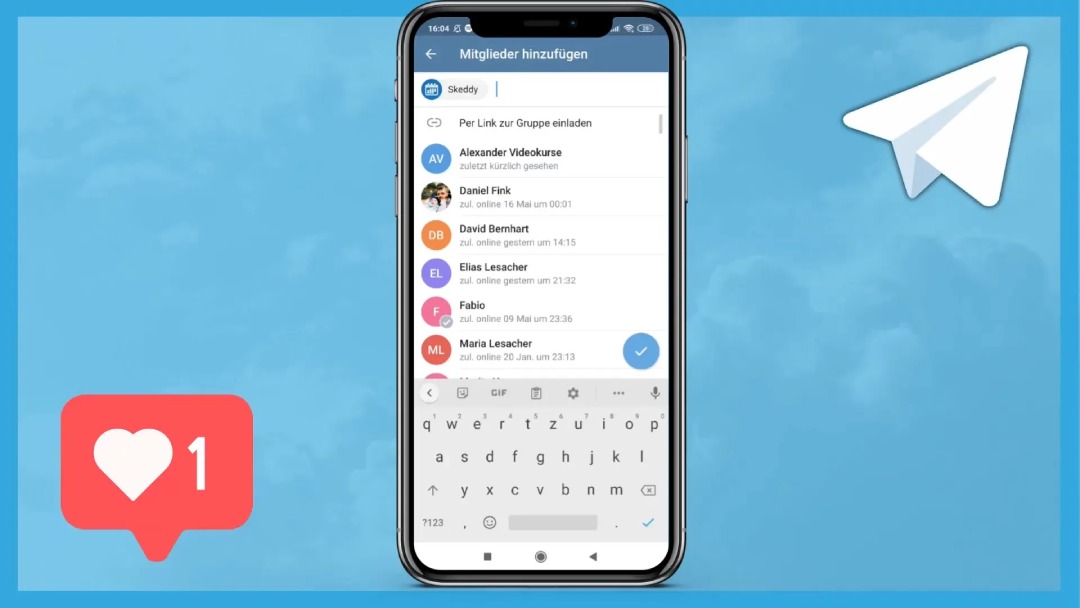
- Open your Telegram group
- Go to Add Members
- Find the bot’s username
- Tap to add
Step 4
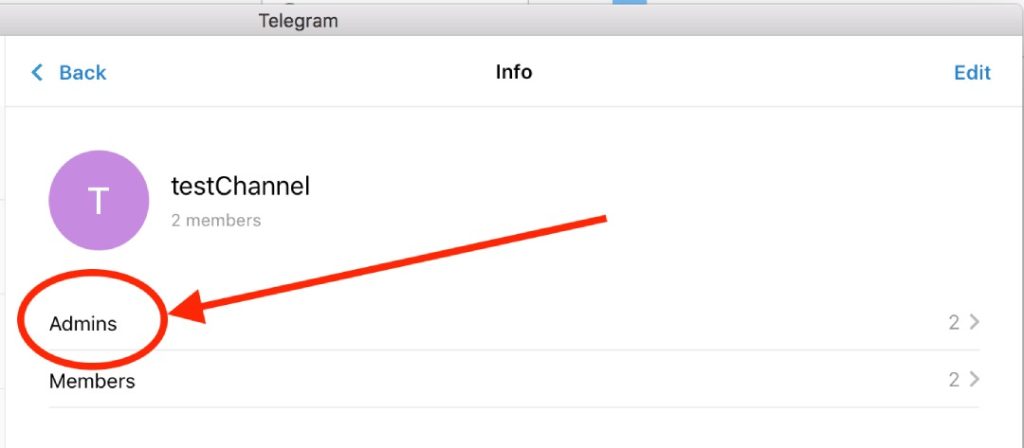
In your group, tap the group name. Tap administrators. Locate the bot and tap it. Allow it to use the permissions it requires (like delete messages, pin messages, etc.). Then save the changes.
Only allow the bot the permissions it needs, as giving too many admin privileges might compromise the security of the groups.
Adding a Telegram Bot as an Admin Is Important
Most Telegram bots will not work if they are not promoted to admin. Only add permissions that the bot needs. Excessive permissions can be risky. Benefits of making a bot an Admin are:
- Can delete spam or inappropriate messages
- Can welcome or mute users automatically
- Can pin important messages
- Can enforce rules and filters
- Can run automation smoothly
How to Find Out if a Telegram Bot is an Admin?
Check a bot’s admin status. Open your Telegram group. Click on “Administrators”. Here, you will get a list of all admins of the group. Search for the name of the bot, including the username.
If the bot is in this list, it means the bot is an admin. Otherwise, the bot is just a member. Tap the bot to review permissions and count the Telegram post views. Don’t forget that verifying a bot’s administrator status will help you with fixing features of your bot that do not work.
How to Add a Telegram Bot as an Administrator
If you find that the bot is not an administrator:
- Go to your Group Settings → Administrators
- Click on “Add an Administrator”
- Choose the bot you want to add
- Make sure you only enable the permissions it needs
- Click Save
Security tip: Never give an administrator bot excessive permissions unless it’s necessary. Only enable time-critical permissions.
Finding the Right Telegram Bot for Group
Before you add a bot, you should find one that suits the goal you want to accomplish:
- Search inside Telegram
- Use the search bar and type words like welcome bot, poll bot, or “moderation bot”. Examples: @ControllerBot, @GroupHelpBot, @PollBot
- Check out bot directories and galleries
- Websites and communities list recommended bots (moderation, analytics, games, etc.)
- Try professional recommendations platforms with an SMM panel to offer curated tools and integrations for social media managers.
- Also, ensure the bot that you pick is alive and high, rated by users bots can be temporarily unavailable or even become outdated.
Free Telegram Bots for Groups
When you’re new to this, these free Telegram bots are pretty on point and reliable. Popular free bots:
- @GroupHelpBot: Basic moderation and admin tools
- @ControllerBot: Post scheduling and channel management
- @RoseBot” Anti, spam, welcome messages, filters
- @Combot Analytics and moderation
- @ShieldyBot CAPTCHA protection for new members
- @PollBot Create polls easily
Most free bots have premium plans, too, if you want to get fancy. Moreover, the premier Telegram SMM panel suited for resellers. Final idea, smarter bot management = better group growth
A well configured Telegram bots can help your group to be more efficient. Getting to know bot bugs, permissions, and limits will save you a lot of trouble and time. If handling multiple groups, bots, or social platforms is your thing and you want a centralized control, automation, analytics, and growth tools, then the SMM working process will make the whole thing quite fast, safe, and professional.
Common Bot Commands to Know
Every chatbot has its unique set of commands, but generally the most Telegram bot command list is as below:
- /help – Displays list of commands
- /settings – Configure bot features
- /welcome on/off – Enabling or disabling welcome messages.
- /ban @username Ban a user (Moderation bots)
- /mute — Silence the user temporarily

Can I Add Bots to Messages Group Chats?
Most definitely, yes. Telegram offers the possibility to add bots to:
- Public groups
- Private groups
- Supergroups
However, there are some things to remember for growing your Telegram group:
- Some bots only function in supergroups
- Some bots do not support private groups
- Certain features require admin rights
Are Telegram Bots Allowed to Send Messages in Groups?
Yes but there are certain conditions. Telegram bots are able to:
Send messages automatically
Respond to commands
Send greeting messages
Post planned updates
Only if:
- They are a part of the group
- They are given the right to send messages
- Privacy Mode permits interaction Bots, however, do not have the right to send unwanted messages or spam groups. Telegram strictly controls this in order to protect users.
Bugs of Adding a Telegram Bot to a Telegram Group And Their Solutions
Though Telegram bots are very capable, users have seen the same issues pop up regularly when adding or using them in groups. The nice thing is that most problems can be resolved easily.
| Issue | Reason | Solutions |
| Bot Doesn’t Respond in the Group | The bot is not allowed to read messages or it has not been turned on. | Chat privately with the bot and click StartMake the bot an adminTurn off Telegram Privacy Mode (if such is the bots requirement) |
| Bot can’t delete messages or moderate | Missing admin permissions | Go to Group Settings -> AdministratorsSelect the botEnable permissions like ‘Delete Messages’, ‘Ban Users’, or ‘Pin Messages’ |
| Bot Joins but Immediately Leaves | The group is a private or restricted one, or the bot is blocked. | Ensure the bot is not blockedRe-add the bot by using an admin account |
| Commands only works on private chat not public | Enabling privacy mode | Disable Privacy Mode using BotFatherOr use something like this: /command@Bot |
Value Tips Not Everyone Knows
- You should frequently check if your bots require an update or if they have new commands.
- Ensure that the bots’ permissions do not allow them from having admin access.
- Only use bots that certainly add value.
- Set up bots before inviting users
- Always test and tune the bot settings first so you will not get any bot performing unwanted actions or spam when the members come in.
- Keep track of updates and new commands: Bots are changing.
- Check regularly whether your bots have new features, security updates, or command changes.
- Limit admin permissions: Grant admin rights only when absolutely necessary, and never allow bots full access unless their function requires it.
- Enforce command restrictions: Some bots have the feature where only admins are allowed to use the commands. The purpose of this is to prevent members from spamming bot commands in the group chat.
- Employ bots with clear documentation: Don’t choose bots that don’t have official guides or support. Well, documented bots are more secure, easier to set up, and work better.
- Uninstall inactive or abandoned bots
- Stop responding unexpectedly: If you find a bot to be abandoned, consider getting a new one
- Watch for message rate limits

SMM Plus Assists You Grow on Telegram
Telegram group management and bots is only a piece of the puzzle. Your social media growth and revenue opportunities are separate pieces of the puzzle. SMM Plus is an all-in-one social media marketing toolkit for creators, marketers, and businesses who desire smarter, faster, and more efficient results from their social media efforts.
- Automated posts and scheduling
- Advanced Telegram bot start management
- Affordable pricing plans with incredible features like Telegram post view increasing
As a personal brand owner or business owner, SMM Plus offers the competitive advantage you need to effectively manage your social media presence.
Supercharge Your Telegram Group with the Telegram bot
Adding a Telegram bot start SMM panel to your Telegram group can essentially take your community from being disorganized and manual to organized and automated. Your group, equipped with the right bot and clever arrangement, will be able to:
- Welcome new members
- Moderate content
- Run polls or events
- Send automated reminders
- Provide real value 24/7
Moreover, if you are looking for tools not only limited to Telegram but also assisting you with content, analytics, automation, and growth across all your social platforms, then a valid platform is your perfect solution. Log in to SMM Plus and start managing, optimizing, and growing your communities as a pro!